How to Add a Custom Token to Phantom Wallet (2026)
Phantom UI steps to manually add any SPL token by mint address — what breaks ($0 price, wrong decimals, blank metadata) and how to fix each.

Ready to create your Solana token? Enter your token details, choose your authority options, and confirm in your wallet.
To add a custom token to Phantom wallet, open the Tokens tab, paste the token's full 44-character mint address into the search bar, and click Add. Phantom auto-fetches name, symbol, decimals, and logo from the Metaplex metadata account on-chain. The add takes under 5 seconds and shows the token immediately in your list. A $0.00 price is not a failure — it means the token has no active liquidity pool that price aggregators can read. A blank name or symbol means the mint has no Metaplex metadata account. Both issues live upstream of Phantom, not inside it.
Quick Facts
| Detail | Value |
|---|---|
| Mint address format | 44-character base58 (no 0, O, I, l) |
| Where to find your mint address | Solscan, token creation tool, on-chain explorer |
| What Phantom auto-fetches | Name, symbol, decimals, logo (from Metaplex) |
| $0.00 price cause | No active LP or LP below ~$1K TVL |
| Blank name/symbol cause | Missing Metaplex metadata account |
| Metaplex metadata rent | ~0.0144 SOL |
| ATA rent per new holder wallet | ~0.002 SOL |
| Decimals after mint | Immutable — cannot be changed |
| Manual add scope | Local to your Phantom instance only |
| Time to confirm add | Under 5 seconds |
Every week someone messages us saying their token "doesn't work in Phantom." Nine times out of ten it works fine — Phantom just has nothing to display, and the sender doesn't know why. The distinction between added to my wallet and visible to the world trips up creators at every experience level, including people who've launched before. We've walked through this with 47 launch projects (12 for paying clients — see our launch data) and the failure modes repeat almost without exception.
The fixes are mechanical once you know the cause. Here's the actual diagnostic.
What "Add Custom Token" Actually Does in Phantom
Adding a custom token in Phantom doesn't notify Phantom's servers. It doesn't submit a listing request. It writes a local preference — an entry in your Phantom instance's token display list — that says "show this mint address in my wallet."
That's all.
Phantom's token-knowledge base describes the wallet as a viewer of on-chain state. When you add a token by mint address, Phantom reads the SPL Token Program to get your balance for that mint, then reads the Metaplex Token Metadata program to get the display fields (name, symbol, logo). If either read fails — no balance, or no metadata — you get a degraded display. The token is still real; Phantom just has incomplete data.
The "added to my wallet" vs "globally listed" gap matters most for token creators announcing their mint address before liquidity exists. Your first 100 holders will need to manually add the token — because Phantom's auto-display for newly launched tokens (in our observation across multiple launches) typically takes 24-72 hours after an active LP is created, not immediately. That's an operator observation, not a Phantom-published SLA — full context at /methodology/launch-data. Before the LP exists, manual add is the only way.
For the full pipeline from manual-add to global auto-display, jump to H2 #4. For now: understand that manual add is a viewer-side action. You're telling your Phantom to show a mint. You're not touching Phantom's database.
Step-by-Step: Add a Token in Phantom (Mobile and Desktop)
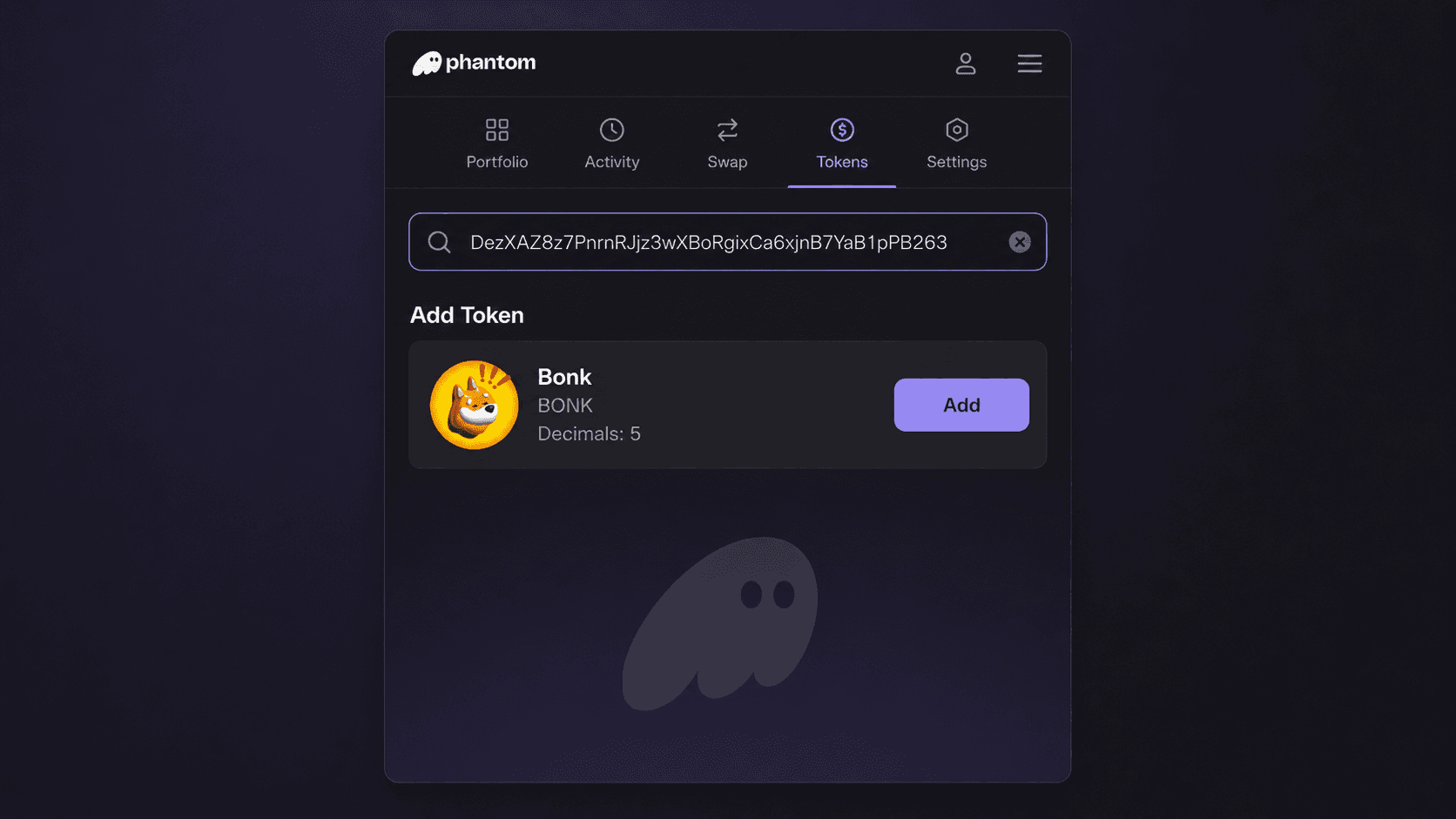
Pre-flight checklist
Before you paste anything:
- Have the full mint address — 44 characters, no spaces, no extra characters. Copy from Solscan or your token creator's confirmation page.
- Confirm you're on Solana mainnet, not devnet. Phantom shows the network in Settings → Change Network.
- Confirm the mint exists: paste the address into Solscan and verify the token detail page loads with your expected supply and decimals.
- Confirm you have (or expect) a token balance. If you're a holder, there should be an Associated Token Account (ATA) with your balance. If you just minted and sent tokens to your wallet, the ATA was created automatically — but it costs ~0.002 SOL in rent, which your wallet should have covered.
Desktop (Phantom browser extension)
- Open the Phantom extension.
- Click the Tokens tab (the grid icon in the left nav).
- Click the search / magnifying glass icon at the top of the token list.
- Paste your full mint address into the search bar.
- The token appears in results with its auto-fetched name, symbol, and logo (if Metaplex metadata exists).
- Click Add.
The token now shows in your Tokens tab with your current balance. If balance is 0, the token still appears — Phantom added the mint to your display list even without a balance.
Tiny UX note: the search bar at the top of the Tokens tab is the same one you'd use to search a token you already hold. People miss it because the placeholder text just says "Search," not "Paste a mint address to add a new token." So you stare at it, type the token's symbol (which doesn't work because Phantom isn't indexing your token yet), and conclude the wallet is broken. It's not. Paste the full 44-character mint address, not the symbol. The Add Token card shows up immediately.
Mobile (Phantom iOS / Android)
- Open Phantom.
- Tap the four-square grid icon at the bottom of the screen.
- Tap the search bar at the top.
- Paste the mint address.
- Tap the token result, then tap Add.
Same result as desktop. Same local-only scope.
What Phantom auto-populates
Phantom fetches these fields from the Metaplex on-chain metadata account — a separate program-derived account (PDA) attached to your mint:
- Name — e.g. "Wrapped Dogecoin"
- Symbol — e.g. "WDOGE"
- Image/logo — the URL in the off-chain JSON pointed to by the metadata URI
- Decimals — fetched from the mint account itself, not Metaplex
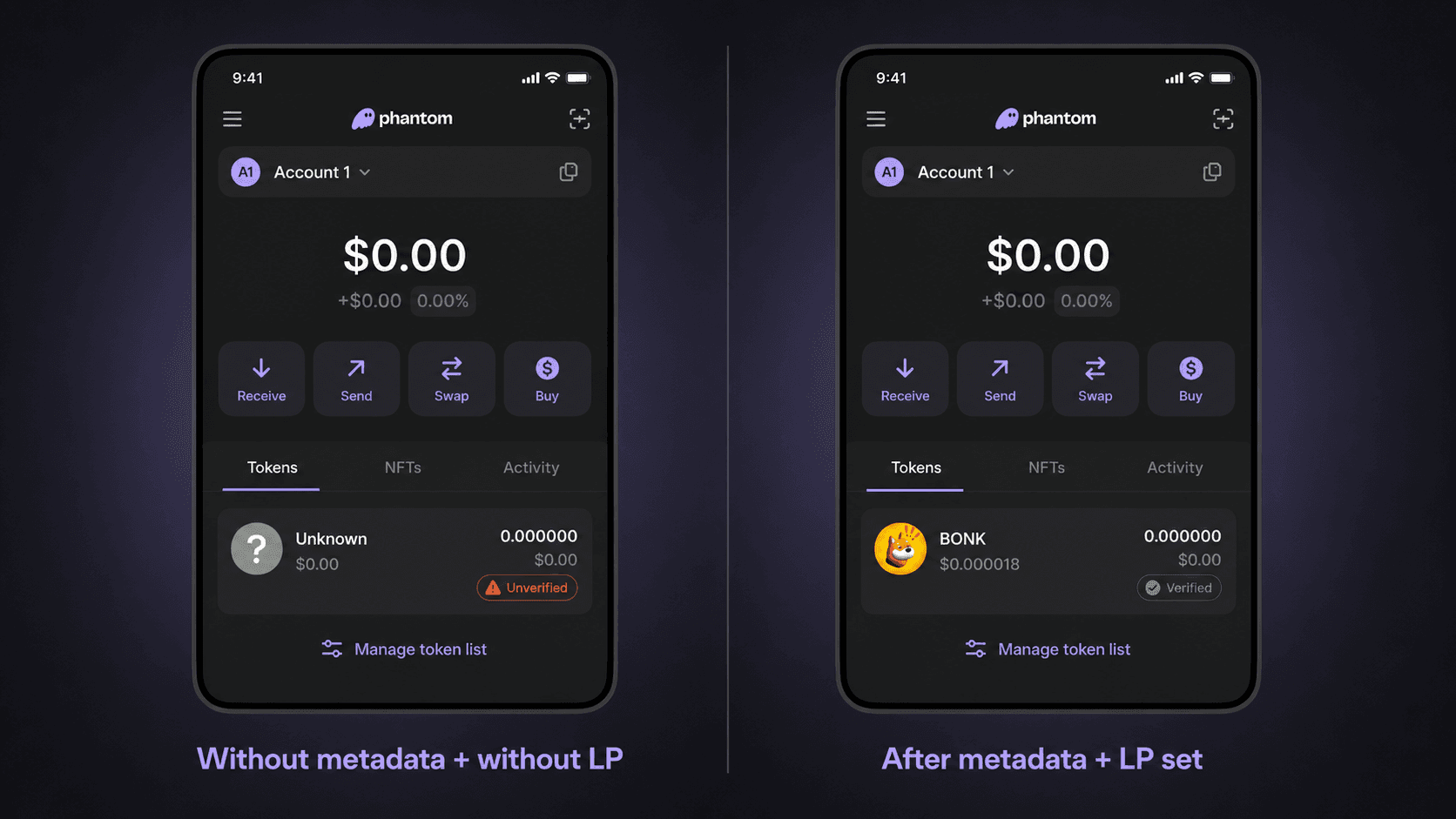
If that metadata account doesn't exist, name and symbol show blank or "Unknown Token." Decimals still load from the mint account directly.
Successful add: balance accurate, price shows $0.00 (normal if no LP), name and symbol populated. That's the expected state for a token with metadata but no active market.
Five Failure Modes (and the Fix for Each)
These are the five issues we see on repeat. The decision tree below maps each failure to its fix in one glance — start at the top and follow the branch matching your symptom. The table after it is the same logic in lookup form.
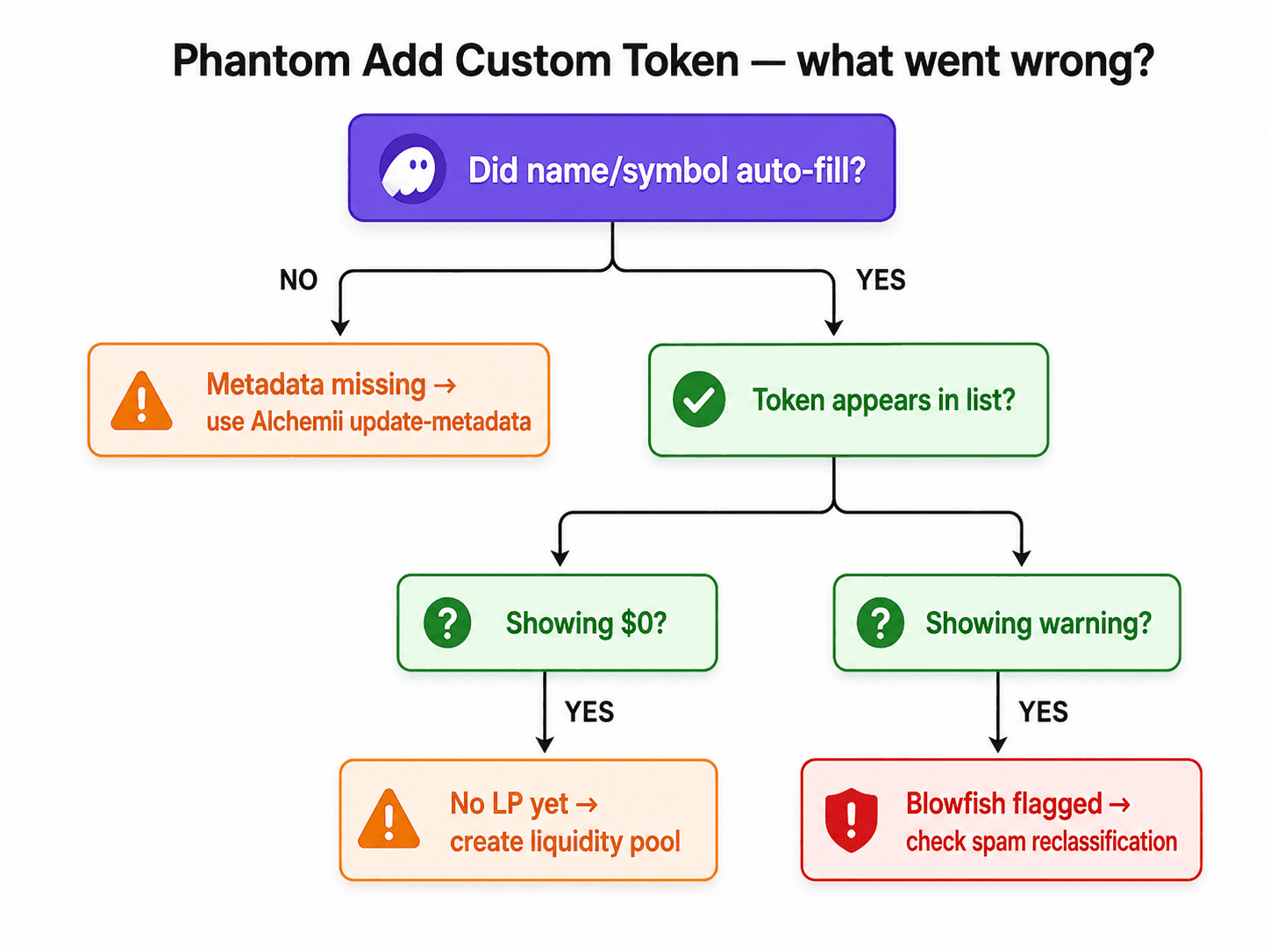
Same decision tree as Mermaid source (for screen readers and copy-paste)
flowchart TD
    A["Pasted mint address in Phantom search"] --> B{"Did name and symbol auto-fill?"}
    B -- "No" --> C["Missing Metaplex metadata account"]
    C --> D["Fix: Create metadata via token-creation tool\nCost: ~0.0144 SOL"]
    D --> E["See: what-is-metaplex-token-metadata"]
    B -- "Yes" --> F{"Does token appear in your list?"}
    F -- "No" --> G{"Do you have an ATA for this mint?"}
    G -- "No" --> H["ATA not created yet\nFix: receive a transfer to auto-create ATA\nor create it manually (~0.002 SOL rent)"]
    G -- "Yes" --> I["Check network: mainnet vs devnet"]
    F -- "Yes" --> J{"Is price showing $0.00?"}
    J -- "Yes" --> K["No active LP or LP below ~$1K TVL\nFix: Create liquidity pool"]
    K --> L["See: /create-liquidity/solana"]
    J -- "No (but wrong price)" --> M["LP too thin or stale price feed\nCheck on DexScreener"]
    F -- "Yes" --> N{"Security warning banner?"}
    N -- "Yes" --> O["Blowfish flagged the token\n(unrevoked authorities, copycat name, or no LP)\nFix: revoke authorities, add LP, review name"]
    O --> P["See: get-solana-token-listed-on-phantom"]
| # | Failure | Root Cause | Fix | Deep-dive |
|---|---|---|---|---|
| F1 | Mint address not found | Extra characters, wrong copy (44-char check) | Re-copy from Solscan; verify no trailing space | Solscan BONK example |
| F2 | Name/symbol blank | No Metaplex metadata account | Create metadata account (~0.0144 SOL) | What is Metaplex Token Metadata |
| F3 | Price shows $0.00 | No active LP or pool below ~$1K TVL | Create a Raydium LP | Create liquidity on Solana |
| F4 | Balance looks wildly wrong | Decimals mismatch (set wrong at mint) | Re-mint with correct decimals — this cannot be patched | SPL Token state.rs |
| F5 | Security/warning banner | Blowfish flagged (unrevoked auth, copycat) | Revoke authorities; review metadata for copied names | Phantom Blowfish docs |
F4 deserves special attention. The decimals field in the SPL Token mint account is written once at creation and is immutable — the state.rs source confirms there's no update instruction for it. If you set 9 decimals but intended 6, the math is off by 10^9 ÷ 10^6 = 1,000×. A token with 1,000,000 raw units at 9 decimals shows as 0.001 in every wallet; the same amount at 6 decimals shows as 1.000. Phantom faithfully displays whatever decimals are in the mint account. The only fix is a new mint.
We got burned by this once on a test launch in Q4 2023 — shipped 9 decimals on a USDC-parity token and every holder saw balances that were 1,000× smaller than expected. We caught it before announcing the address publicly, but it cost us a re-mint and a new token address to share with early access holders. No shortcut exists.
Added to My Wallet vs Globally Listed on Phantom — the Hard Line
Manual add is local. Full stop.
When you paste a mint address into Phantom's search and click Add, nothing changes for anyone else on the network. Other users' Phantom instances don't see your action. Phantom's servers don't receive a notification. The token's global display status is unchanged.
To get your token to auto-display for everyone who holds it — without them manually adding it — you need to pass Phantom's indexing pipeline. Here's the full sequence, based on Gary's observation across our launch data (not Phantom's documented SLA — see /methodology/launch-data for how we track this):
- Metaplex metadata exists — name, symbol, image URI on-chain. Required from step one.
- Active LP created — Raydium or Orca pool, typically ≥$1K in initial liquidity. Below this threshold, aggregators have no reliable price source and Phantom may not index.
- Authorities revoked — mint and freeze authority revoked. Tokens with live authorities get Blowfish security flags.
- Jupiter unverified listing — happens automatically within approximately 5-15 minutes of pool creation for most new SPL tokens, based on Jupiter's token list pipeline.
- Phantom auto-display — in our observation, typically 24-72 hours after a qualifying LP is live. This is not a Phantom-published SLA.
- Jupiter strict list — requires applying and meeting Jupiter's criteria; typically takes 1-4 weeks. This is what triggers Phantom's "verified" badge.
The practical implication: for the first hours after you mint — before you've deployed liquidity — your token is only manually-addable. Tell early holders the 44-character mint address and walk them through the Phantom steps above. Once you add liquidity and the auto-index picks it up, they'll see the token in their wallets automatically without needing to do anything.
For the deeper treatment of the "added vs listed" distinction and how Phantom's verified badge actually works, read Get Your Solana Token Listed on Phantom.
One more thing about the "30-day window" claim that circulates in Solana creator communities. Gary's observation is that Phantom appears to maintain a freshness window for new tokens — tokens with activity in the last roughly 30 days get prioritized in the display pipeline. This is inferred from behavior across our launches, not documented behavior from Phantom. We're flagging it here because we've seen it matter, but don't treat it as a published Phantom commitment or a reliable spec.
Token Creator Checklist — Make Sure Your Token Is Manually-Addable
Before you share a mint address with anyone, verify these fields. Everything in the table below is readable from your token's page on Solscan.
Phantom display pipeline — from mint to auto-visible

  [Token minted]
       │
       ▼
  [Metaplex metadata written]  ←── ~0.0144 SOL rent
       │
       ▼
  [Holder pastes mint address into Phantom]  ◄── Manual add (local only)
       │
       ▼ (after LP deployed)
  [Raydium/Orca pool ≥ ~$1K TVL]
       │
       ▼
  [Jupiter unverified index: ~5-15 min]
       │
       ▼
  [Phantom auto-display: ~24-72 hrs]   ← operator observation, not Phantom SLA
       │
       ▼
  [Jupiter strict list: 1-4 weeks]
       │
       ▼
  [Phantom verified badge]
| Field | Where to Verify (Solscan tab) | What Should Be There |
|---|---|---|
| Mint address | URL bar after search | 44-character base58 string |
| Supply | Overview tab → Total Supply | Your intended supply (e.g., 1,000,000,000) |
| Decimals | Overview tab → Decimals | 6 for USDC parity, 9 for sub-cent; 0 for no fractional |
| Token Program | Overview tab → Token Standard | TokenkegQfeZyiNwAJbNbGKPFXCWuBvf9Ss623VQ5DA (SPL standard) |
| Name + Symbol | Metadata tab | Your token name and ticker |
| Image URI | Metadata tab → URI | Points to a valid IPFS URL with your logo |
| Mint Authority | Accounts tab | null if revoked; your wallet address if still active |
| Freeze Authority | Accounts tab | null if revoked |
| Update Authority | Metadata tab | null if revoked; your wallet address if update still possible |
Decimals double-check. Three common choices:
- 6 decimals — USDC parity benchmark. USDC's mint EPjFWdd5AufqSSqeM2qN1xzybapC8G4wEGGkZwyTDt1v uses 6. WIF's mint EKpQGSJtjMFqKZ9KQanSqYXRcF8fBopzLHYxdM65zcjm uses 6 — the de facto memecoin standard (1B supply, 6 decimals).
- 9 decimals — More precision than needed for most memecoins; BONK DezXAZ8z7PnrnRJjz3wXBoRgixCa6xjnB7YaB1pPB263 uses 5 (a deliberate exception — 100T supply, 5 decimals). 9 causes sub-cent display issues if your token has mid-range price.
- 0 decimals — No fractional units. Fine for governance tokens or event tickets; terrible for anything you want to trade at a sub-dollar price.
What a holder needs. Nothing beyond the mint address. One string, 44 characters. That string is sufficient to look up the token on Solscan, verify supply and decimals, and manually add it to any Solana wallet. Publish it publicly before you deploy LP — create a pinned tweet, a Telegram post, a landing page, whatever your community uses. The address doesn't change. It's the permanent identifier for your token, forever.
Pre-announce before LP. Deploy Metaplex metadata first (costs ~0.0144 SOL in rent), publish the mint address, let early holders add the token manually. Then deploy LP. This lets holders see their balance from the moment they receive an airdrop or presale allocation — before price discovery exists. Tools like Alchemii bundle the metadata creation and mint into a single transaction, so the mint address is ready to share as soon as you sign.
For more on token images not rendering after metadata is set, see Solana Token Image Not Showing. For the full launch sequence from token creation through LP, read How to Create a Solana SPL Token. If you haven't minted yet, the Alchemii Solana Token Creator handles all of this in one flow — mint, metadata, and authority setup in a single transaction.
Pre-share mint address checklist:
- Minted on Solana mainnet (not devnet — double-check in Phantom Settings → Network)
- Mint address confirmed on Solscan — token detail page loads with correct supply and decimals
- Metaplex metadata exists — name, symbol, and image URI populated in the Metadata tab
- Image URL is IPFS (not a regular HTTP URL that can go offline)
- Decimals match your intended display precision (6 recommended for memecoins)
- You have the mint address copied cleanly — 44 characters, no spaces or newlines
Limitations
What this guide doesn't cover, and where you should look instead:
- Token-2022 extension tokens — tokens using the newer Token-2022 program (program ID
TokenzQdBNbLqP5VEhdkAS6EPFLC1PHnBqCXEpPxuEb) have additional fields and behavior differences. Phantom handles Token-2022, but the add flow may differ from standard SPL. This guide covers standard SPL only. - Devnet tokens — manual add works on devnet if you switch Phantom's network. But Solscan, DexScreener, and price feeds all operate on mainnet by default. If you're testing on devnet, use the Solana Explorer for verification.
- Getting listed globally (not just manually-added) — manual add is a viewer-side action. For Phantom auto-display, Jupiter listing, CoinGecko listing, and verified badge, see Get Your Solana Token Listed on Phantom and Jupiter Strict List Explained.
- Token not showing at all after manual add — if the token still doesn't show after following the steps above, the issue is more likely in your token's on-chain state. See Solana Token Not Showing in Phantom for the full 7-step diagnostic.
- Price data and market data — $0.00 from Phantom is not a data source. Use DexScreener's WIF pool page or GeckoTerminal's WIF token page as the real price source once an LP exists — both pull from the actual pool, which Phantom does not until Jupiter indexes the token.
FAQ
How do I manually add a custom token to Phantom wallet?
On desktop: open Phantom, go to the Tokens tab, click the search bar, paste the token's mint address (44-character base58 string), and click Add. On mobile: tap the four-square grid icon, tap the search bar, paste the mint address, and tap Add. The token appears in your wallet immediately after you confirm. This works for any valid SPL token on Solana mainnet — regardless of whether it's officially listed anywhere.
Why does my custom token show $0.00 in Phantom after adding it?
$0.00 is not an error — it means Phantom has no price feed for the token. Price display requires an active liquidity pool (Raydium or Orca) with enough depth that aggregators can compute a market price. Tokens without liquidity, or with pools below roughly $1K TVL, typically show $0.00. The token is real; it just has no on-chain market yet.
What is the mint address format for Phantom token search?
A Solana mint address is a 44-character base58-encoded string using the standard base58 alphabet — no zero (0), uppercase O, uppercase I, or lowercase l. Example: BONK's mint address is DezXAZ8z7PnrnRJjz3wXBoRgixCa6xjnB7YaB1pPB263. Get yours from Solscan by searching your token name, or from your token-creation tool's confirmation page.
If I add a token manually to Phantom, does it appear for everyone?
No. Manual add is purely local — it only affects your Phantom instance. Other users still need to add the token themselves, or wait for Phantom to auto-index it. Phantom auto-indexes tokens once they have Metaplex metadata and a qualifying liquidity pool. Before that happens, tell your holders the mint address so they can add it manually the same way you did.
Why does my token's name or symbol show blank after I add it to Phantom?
Phantom fetches name and symbol from the Metaplex metadata account attached to your mint. If that account doesn't exist — typically because the token was minted with raw spl-token CLI without Metaplex — Phantom has nothing to display. You need to create a Metaplex metadata account for the mint (costs roughly 0.0144 SOL in rent). Without it, every wallet and explorer will show the mint address as the token identity.
References
- Phantom — Understanding Tokens
- SPL Token Program documentation
- Metaplex Token Metadata — Program Overview
- Metaplex Token Standard (off-chain JSON schema)
- Solana Core Concepts — Accounts
- Solscan — BONK mint DezXAZ8z7PnrnRJjz3wXBoRgixCa6xjnB7YaB1pPB263
- Solscan — WIF mint EKpQGSJtjMFqKZ9KQanSqYXRcF8fBopzLHYxdM65zcjm
- Solscan — USDC mint EPjFWdd5AufqSSqeM2qN1xzybapC8G4wEGGkZwyTDt1v
- Jupiter Token List API documentation
- SPL Token Program — state.rs (mint account structure, immutable decimals)
- Metaplex — update instruction (metadata mutability)
- Phantom — Blowfish security scanner integration
- DexScreener — WIF pool page
- SPL Associated Token Account program
- GeckoTerminal — WIF token page (independent price/holder data source)
Create your Solana token
Choose your token name, symbol, supply and image. Review the authority options and creation fee, then confirm the transaction in your wallet. Liquidity is a separate step.
Related Topics
More guides to Solana token creation, authorities, liquidity, and meme coin launches.
Solana Token Not Showing in Phantom? 7-Step Fix (2026)
Just minted a Solana token but it's not appearing in your Phantom wallet? Here's the exact 7-step diagnostic to find out why and fix it in under 5 minutes.
Create a Solana Token With the spl-token CLI (2026)
The full spl-token CLI path to a Solana token: the commands, the post-rent-cut cost of 0.0163 SOL verified on-chain, why your mint shows as Unknown Token.
How to Launch a Token on Solana That Isn't a Memecoin
Launch a Solana token built to last: authority strategy, decimals, supply, vesting and liquidity for game, governance, loyalty and creator tokens in 2026.
Transfer Mint Authority on Solana: Move vs Revoke
Transfer Solana SPL mint authority to a multisig instead of revoking — when each is right, SetAuthority mechanics, common pitfalls.
How to Airdrop Solana Tokens (Step-by-Step 2026)
Complete walkthrough for airdropping SPL tokens on Solana: wallet CSV prep, batch limits, cost per send, and when an airdrop helps vs. hurts your launch.
Raydium Token Launch: The 5-Step Playbook (2026)
End-to-end Raydium token launch flow: mint your SPL, configure metadata, seed a Raydium pool, burn LP, and get listed on Jupiter. Total cost ~0.72 SOL.